How to Change the VNC Password in Virtualizor


You can change the VNC password using Virtualizor.


1. Log in to your Virtualizor Control Panel.

2. From the left side panel, click on List VPS.
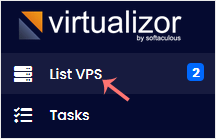
Virtualizor-list-vps-menu.gif


3. Hover your mouse on the appropriate VPS, and that line will be highlighted. Then click on the Manage icon in the highlighted line.

Virtualizor-click-manage-vps.gif


4. Click on Settings and then on VNC Password.
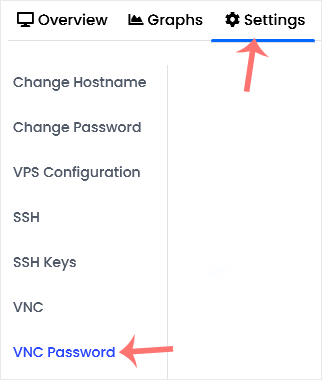
Virtualizor-VNC-password-option.gif


5. Enter your new password, and confirm with Change VNC Password.
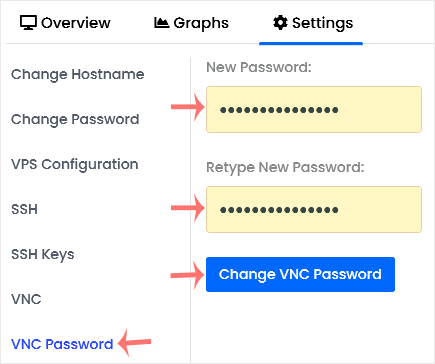
Virtualizor-Change-VNC-Password-Final.gif


6. Reboot your VPS. Now, you can access VNC with your new password.

 

  • 0 Los Usuarios han Encontrado Esto Útil
¿Fue útil la respuesta?

Artículos Relacionados

How to Forcefully or Gracefully Shut Down the VPS in Virtualizer

You can shut down the VPS in two ways - forcefully or gracefully in Virtualizor.   How to...

How to Start/Boot Your VPS in Virtualizer

  If your VPS is down/offline, you can start it using Virtualizor.   1. Log in to your...

How to Access VPS via VNC in Virtualizor

  You can access your VPS via VNC in an emergency, such as when a firewall blocks your IP, the...

How to Reinstall an OS Using the Virtualizor Automatic OS-Reinstaller

  You can easily Install/Reinstall the operating system using the Virtualizor. However, note that...

How to Manually Install/Reinstall an OS Using Virtualizor for a Customized Installation

  The Virtualizor's automatic reinstall option does not allow you to modify or create a custom...